Showing posts with label EPM. Show all posts

Friday, 1 April 2022

How to Create an Oracle Wallet SSL Certificate Request Containing Subject Alternative Name?

Certificate Problem

I recently had an issue after configuring Oracle HTTP Server SSL for a customer. The customer was using self-signed certificates which they managed and created themselves. I created the certificate request using the Oracle Wallet Manager as per usual and they then sent me the certificates to import into the wallet. Unfortunately the users were seeing this error when they connected to the EPM Workspace, even though the certificates were imported successfully:


Your connection is not private.
Attackers might be trying to steal your information...
NET::ERR_CERT_COMMON_NAME_INVALID

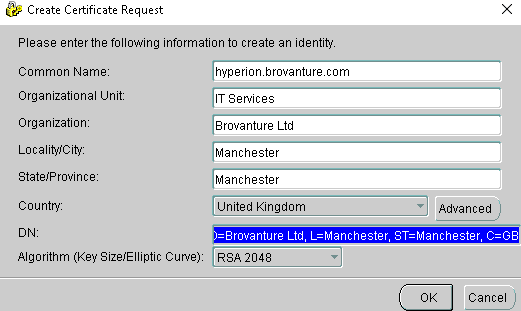
The customer determined that the issue was because the certificate didn't contain a SAN or subjectAltName (Subject Alternative Name) field. Unfortunately, the Oracle Wallet Manager UI doesn't contain a field for the SAN when you create your certificate request:


The Subject Alternative Name (SAN) is an extension to the X. 509 specification that allows users to specify additional host names for a single SSL certificate. The use of the SAN extension is standard practice for SSL certificates, and it's on its way to replacing the use of the common name. 

So, how do we create a certificate request which includes the subjectAltName parameter? 

Windows Command Line to the rescue! Fortunately orakpi, the command line utility for the Oracle Wallet supports the additional subjectAltName  parameter. For a Oracle EPM Hyperion 11.2.x installation it can be found in the bin folder of your Oracle Client install e.g. Oracle\Middleware\dbclient64\bin

Create the Wallet Using ORAKPI

You will need to set the JAVA_HOME in your command line session before you run the command. To create the wallet using orakpi run the following command:

orapki wallet create -wallet D:\Oracle\SSL -pwd Password -auto_login


Create the Certificate Request Using ORAKPI

We can now use orakpi to create the certificate request which includes the subjectAltName parameter. First we need to get the main body of the distinguished name (DN) of the certificate request. We can use the Oracle Wallet Manager to create this for us by entering the information in a dummy certificate request and then just copying the DN string (close and don't save afterwards):


Copy the DN entry and you can paste this into your command line entry.

orapki wallet add -wallet D:\Oracle\SSL -dn "CN=hyperion.brovanture.com, OU=IT Services, O=Brovanture Ltd, L=Manchester, ST=Manchester, C=GB" -keysize 2048 -addext_san DNS:hyperion.brovanture.com

Notice the last part of the command. This is where we have added our SAN parameter, the one we couldn't add when generating using the Oracle Wallet Manager UI.

You can now go back to using the Oracle Wallet Manager UI to manage the export of the certificate request containing the SAN and import of the new certificates once you receive them. You won't be able to see the SAN entry in the UI but don't worry, it's there just not displayed.


Tuesday, 15 March 2022

EPM 11.2.8 FDMEE ODI Upgrade Issue

I encountered an issue this week when upgrading an 11.2.2 EPM environment to version 11.2.8. 

Note that is is only an issue when using an Oracle database and when upgrading from a version older than 11.2.5.

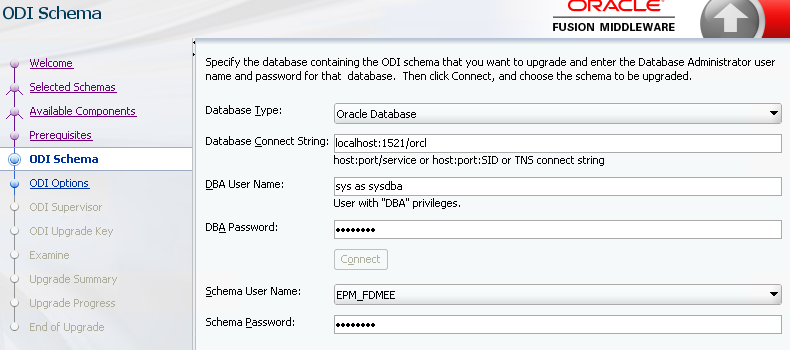
The problem occurred at the "Manual Configuration Tasks for FDMEE" task where you  run the RCU Upgrade Assistant (UA.bat) to manually upgrade the version of ODI used by your FDMEE instance. I got the following errors:

  • The specified database does not contain any schemas for Oracle Data Integrator or the database user lacks privilege to view the schemas.
  • Cause: The database you have specified does not contain any schemas registered as belonging to the component you are upgrading, or else the current database user lacks privilege to query the contents of the schema version registry.
  • Action: Verify that the database contains schema entries in schema version registry.  If it does not, specify a different database.  Verify that the user has DBA privilege. Connect to the database as DBA.


The problem is that the UA assumes that we used the RCU to create our ODI repository which is not the case. In the EPM world your ODI repository is created inside your FDMEE repository when you configure FDMEE. 

The UA will look at the SYSTEM.schema_version_registry table to check the version of ODI but it is missing from our table:

So the UA errors with the messages listed above.

You also see the following error message if you try and connect to the ODI repository using the ODI Studio:

  • ODI-10179 / ODI-26168: Client requires a repository with version 05.02.02.09 but the repository version found is 05.02.02.07

There's a support document (2699076.1) which explains how the ODI version matches with the schema version. We'll use this in our hack later:
  • The "05.02.02.07" corresponds to ODI Version 12.2.1.3.0.
  • And "05.02.02.09" is for Versions 12.2.1.3.190708, 12.2.1.4.0 and 12.2.1.4.200123.

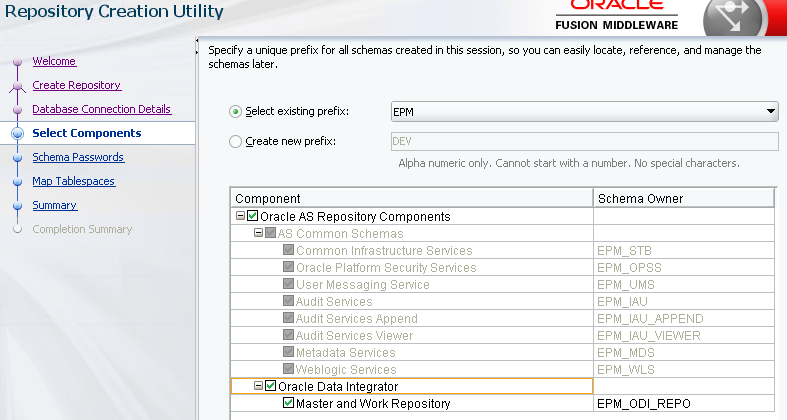
To get around the issue I ran the RCU to create a bogus ODI repository. This also creates the entry in the SYSTEM.schema_version_registry table necessary for me to run the upgrade assistant:


This creates the entry for ODI in my SYSTEM.schema_version_registry:

However, as you can see above it is pointing to the new bogus ODI repository and the version is incorrect because I used the upgraded EPM 11.2.8 version of the RCU (12.2.1.4.0) to create the entry.

I ran the following SQL to change the schema from EPM_ODI_REPO to my FDMEE schema EPM_FDMEE and changed the version from 12.2.1.4.0 to 12.2.1.3.0:

update system.schema_version_registry set OWNER='EPM_FDMEE', VERSION='12.2.1.3.0' where COMP_ID='ODI';
commit;

Now you can see the schema and version are correct:


I was then able to run the UA successfully:


The SYSTEM.schema_version_registry is then updated with the upgraded information:


The upgrade was successful and I was also able to login to ODI using the ODI Studio as there was no longer a mismatch between client and repository versions.

If I were to run into this again I would just insert the ODI row into the SYSTEM.schema_version_registry table directly using SQL with the correct schema and version rather than running the RCU and then editing.

Happy upgrading!


Wednesday, 16 December 2020

EPM 11.2 - How to Start OHS Remotely?

In the on-prem Hyperion EPM world it’s common to have one script sitting on your primary Foundation server which can start and stop all the services across all of the host machines in your environment. In 11.1.2.x this was simple because every process had a Windows service associated with it and we could use the Windows SC command to start a Windows Service remotely on another machine.


In 11.2.x there is no Windows service for the OHS component which needs to be started via the command line. ThatEPMBloke wrote a service wrapper to create a service but some customers don’t allow custom code in their environments. So in a clustered EPM 11.2.x environment how can we start our second instance of OHS from our primary Foundation server?

OHS Node Manager to the Rescue!

TLDR;

To put it simply we use the weblogic scripting tool wlst.cmd on the primary OHS server to connect to the node manager on the second OHS server and start OHS remotely.

Detail:

When you install OHS with the EPM installer it configures OHS as a standalone node. OHS needs the local OHS Node manager service running in order to start. By default each node manager instance only listens on localhost (you can’t connect to it remotely) but we can tweak the node manager Windows service to listen externally which enables us to connect from the primary node to the secondary node manager and start OHS on the secondary node.

Alter the Node Manager Listen Address

On the second OHS server:

  • Stop OHS using the command line command stopComponent.cmd ohs_component
  • Stop the OHS Node Manager Windows service
  • Open up the Windows registry at: 

HKEY_LOCAL_MACHINE\SYSTEM\CurrentControlSet\Services\Oracle Weblogic ohs NodeManager (E_Oracle_Middleware_ohs_wlserver)\Parameters


  • Edit the CmdLine parameter and find the -DListenAddress='localhost' in the string
  • Change the ListenAddress so that it listens on the hostname rather than localhost e.g. -DListenAddress='Hostname2' This enables us to connect to the node manager remotely.
  • Start the Node manager Windows service on the second OHS server

Create a Super Simple Python Script to Start OHS on Server2

We can now write a simple python script on the primary OHS server to start OHS on the secondary OHS Server.

startOHS2.py:

nmConnect('epm_admin', 'password', 'hostname2', '5557', 'ohs', 'E:/Oracle/Middleware/user_projects/EPMFDN2/httpConfig/ohs','ssl')
nmStart(serverName='ohs_component', serverType='OHS')
nmDisconnect()

  • nmConnect() - this command connects to the OHS node manager on hostname2
    • The user name and password are the Weblogic Admin credentials
    • The hostname is the servername of the second OHS server
    • 5557 is the default port that OHS NodeManager runs on in EPM installations
  • nmStart() - this command starts the OHS 'ohs_component' server on hostname2
  • nmDisconnect() - disconnects from NodeManager
Use the Weblogic Scripting Tool to run the script. You should use the wlst.cmd found in the Oracle\Middleware\oracle_common\common\bin folder:

e.g.

E:\Oracle\Middleware\oracle_common\common\bin\wlst.cmd E:\Oracle\Scripts\startOHS2.py


To stop OHS on hostname2 you can run a similar script which uses the nmKill() command to kill the secondary instance of OHS:

stopOHS2.py:

nmConnect('epm_admin', 'password', 'hostname2', '5557', 'ohs', 'E:/Oracle/Middleware/user_projects/EPMFDN2/httpConfig/ohs','ssl')
nmKill(serverName='ohs_component', serverType='OHS')
nmDisconnect()

Points of Interest

This works nicely, however it stores the password in plain text which isn't great. You can alter the nmConnect() command to use userConfigFile and userKeyFile parameters to store the encrypted user credentials.

Another point to make is that your usual "startComponent.cmd ohs_component" script won't work any more. This is because the script tries to connect to nodemanager on localhost instead of the hostname. The simple solution is to use the same startOHS2.py script on your second OHS server.


Hope you all have a safe and merry Christmas!

Friday, 6 November 2020

Data Load Fails in EPM Cloud Data Management when using Replace Data Option

 We were trying to load data into an EPM Planning Cloud application and we saw this:

Data management, EPM Cloud, Error

Oh no, the dreaded red cross when doing a data export in Data Management!


In this example we were running a data load to a target plan type using the 'Replace Data' option.


Here is the error message in the log:

2020-11-06 09:55:02,837 INFO  [AIF]: Replace data script:

FIX ("Manchester",”Apr”,”Working","FY21")

CLEARDATA "null";

ENDFIX

2020-11-06 09:55:02,838 INFO  [AIF]: EssbaseRuleFile.getReplaceDataScript - END

2020-11-06 09:55:02,875 ERROR [AIF]: Cannot calculate. Essbase Error(1012004): Invalid member name [null]

2020-11-06 09:55:02,882 INFO  [AIF]: EssbaseService.loadData - END (false)

2020-11-06 09:55:02,901 FATAL [AIF]: Error in CommData.loadData


The issue we have is that the calc script is obviously invalid. When you run data load rule with the “Replace Data” option it dynamically creates a calculation to clear the data in the target cube before it loads the data.


The calculation generated is usually of the format CLEARDATA “Scenario Name”

where the Scenario (DM Category) is derived from whatever category you have set in your data load rule.


So why was ours failing?

We were loading data into multiple scenarios from the same file. In order to do this we had set our Scenario dimension to Generic in the target application dimension details:


This of course means that the Category (Scenario) in the rule is ignored so the dynamically generated CLEARDATA calculation sets the scenario as null.


The solution?

Set the data export mode to 'Store Data'.  This will just load the data into the target without trying to clear the data using a dynamic script. We run a business rule prior to the load to clear the data target.


Ahhh, that's better. 

Thursday, 24 September 2020

EPM 11.2.2 - APS Fails to Start Correctly

There is a bug in EPM 11.2.2 which causes the Analytic Provider Services web application to fail to start up correctly the second time it is launched. You won't be able to connect to Essbase using Smart View and you will see these errors in the APS log file:

<Error> <HTTP> <BEA-101216> <Servlet:"oracle.webservices.essbase.DatasourceService" failed to preload on startup in Web application: "/essbase-webservices".

weblogic.application.ModuleException: java.lang.RuntimeException: Failed to deploy/initialize the application as given archive is missing required standard webservice deployment decriptor.

The fix can be found in Oracle Support Doc ID 2693784.1. You'll need to apply APS patch 11.1.2.4.040 to your EPM 11.2.2 install. This might seem strange to have to apply a patch from the previous version but remember that EPM 11.2.2 actually runs Essbase version 11.1.2.4 under the covers.

I can confirm that once you apply the patch, APS starts correctly. Everyone can go and have a nice cup of tea.

Friday, 18 September 2020

EPM 11.2.x - Where did my Oracle Wallet Manager Go?

Recently I had to install EPM 11.2.x for a customer using MS SQL Server as their relational repository. The EPM installer package comes bundled with the option to install the Oracle Client. This customer didn't need the client so there was no need to add the Oracle clients to the installed options.

Big Mistake!

The Oracle Wallet Manager is used to create SSL certificate requests and to import new certificates for Oracle HTTP Server. In previous versions of EPM, the EPM stack would also install the Oracle Wallet Manager for you by default.  This is no longer the case in EPM 11.2.x, the Wallet Manager only gets installed if you install the Oracle Client:


Lesson: always install the Oracle Client as part of the EPM stack, even if you don't need it!

Fortunately the Oracle client installer can be found in the unzipped EPM installation extracts: <Extract Location>\db64\Disk1

Run the setup.exe and your Oracle Wallet Manager will appear by magic. Happy SSLing!


Tuesday, 25 February 2020

Oracle EPM 11.2 Installation How To

There have been some very helpful blogs and twitter posts out there commenting on the Oracle EPM 11.2 installation so I'd like to thank these lovely people:
I’ve taken some of the info from the resources above and my own trial an error and come up with a condensed Oracle EPM 11.2 installation crib sheet. I’d recommend getting an Oracle EPM infrastructure consultant to do this for you as it’s quite involved. Oracle have had years to get this right so I really can’t understand how they’ve made such a mess of it. Multiple RCUs?!


Server Preparation

I used the following 3rd party software versions. Check the EPM Certification Matrix for full details
  • Windows Server 2019
  • SQL Server 2016
Windows Firewall
  • Turn off notifications and blocking for Domain and Local Network.
Windows Defender
  • Turn off on-access scanning.
Other Bits
  • Create a new user with administrator privileges (using the 'administrator' user is not recommended although it worked for me).
  • Turn off UAC. I also set these local policies to ensure UAC is completely turned off:
    • User Account Control: Behavior of the elevation prompt for administrators in Admin Approval Mode (set to Elevate without prompting)
    • User Account Control: Detect application installations and prompt for elevation (set to Disabled)
    • User Account Control: Only elevate UIAccess applications that are installed in secure locations (set to Disabled)
    • User Account Control: Run all administrators in Admin Approval Mode (set to Disabled)
  • When launching any batch files right-click and 'Run as Administrator'.
  • Check your install binaries. For some reason my V984509-01_part5.zip was unable to extract the fmw_12.2.1.3.0_odi.jar file.

RCU

For distributed installs you will need to run the RCU for each server node. I did try copying across the RCUSchema.properties file from my first node to other nodes but I got this error when trying to deploy the web app servers on other nodes: "The schema EPM_OPSS is already in use for security store(s)". So each node does need a separate RCU schema.

Having multiple RCU SQL databases per server node is a pain. To make things more manageable I used the same RCU database for each node and just changed the RCU prefix so I only needed one database.

Add your RCU database connection details manually to the E:\Oracle\Middleware\EPMSystem11R1\common\config\11.1.2.0\RCUSchema.properties:

sysDBAUser=UserName
sysDBAPassword=Password
rcuSchemaPassword=Password
schemaPrefix= e.g EPM1
dbURL= e.g. jdbc:weblogic:sqlserver://EPM1:1433;databaseName=RCU

EPM Configuration

Configure only the Foundation app server and database first. After configuring Foundation launch Weblogic admin server and start the Foundation Windows service.
Once you’ve done this you can then go ahead and configure the other components.
If you’re doing a distributed installation, make sure the Weblogic admin server is running on the first node before you configure the other nodes. On the second node I went through the same procedure of only configuring Foundation first, starting it, stopping it and then configuring the rest.

OHS

The config utility doesn’t create a OHS Windows service for us so we need to start it manually.
  • To start OHS run E:\Oracle\Middleware\user_projects\EPM1\httpConfig\ohs\bin\startComponent.cmd ohs_component
  • To stop OHS run E:\Oracle\Middleware\user_projects\EPM1\httpConfig\ohs\bin\stopComponent.cmd ohs_component
That EPM Bloke has kindly created a service wrapper here.

Rip it up and start again

The uninstallers are surprisingly good. If you need to ditch it all and start again then uninstall in this order. From the Windows menu:
  • Run the “Oracle EPM System” -> “Uninstall EPM System”
  • Run “Oracle FMW – 12.2.1.3.0 (2)” -> “Uninstall OracleHome2”
  • Run “Oracle FMW – 12.2.1.3.0”  -> “Uninstall OracleHome”
The Oracle Client installs will prompt you to uninstall from the command line
Just to be sure I also deleted anything EPM related in the C:\Users\<USER>\AppData\Local folder.

I've now got a clustered EPM installation working nicely. Happy installing everyone.

Wednesday, 23 November 2016

Where did my Planning Job Console History Go?

Quick post on getting purged history from the Planning Job Console...

Planning has a nice feature which is the Job Console. In the Job Console page (Tools-> Job Console) you can check the status (processing, completed, or error) of these job types: Business Rules, Clear Cell Details, Copy Data, Push Data and Planning Refresh.

By default, the job console will delete all information on  any completed jobs older than 4 days. This isn't good if you need to troubleshoot an issue or check a transaction completed before this period. However, the history gets moved to another table in the Planning repository called HSP_HISTORICAL_JOB_STATUS. The table stores the user accounts as objectIDs so we can join it with the HSP_OBJECTS table to get the job history with friendly userIDs.

Here is the SQL to retrieve all the history:

select HSP_HISTORICAL_JOB_STATUS.JOB_ID,
HSP_HISTORICAL_JOB_STATUS.PARENT_JOB_ID,
HSP_HISTORICAL_JOB_STATUS.JOB_NAME,
HSP_HISTORICAL_JOB_STATUS.JOB_TYPE,
HSP_Object.OBJECT_NAME,
HSP_HISTORICAL_JOB_STATUS.START_TIME,
HSP_HISTORICAL_JOB_STATUS.END_TIME,
HSP_HISTORICAL_JOB_STATUS.RUN_STATUS,
HSP_HISTORICAL_JOB_STATUS.DETAILS,
HSP_HISTORICAL_JOB_STATUS.ATTRIBUTE_1,
HSP_HISTORICAL_JOB_STATUS.ATTRIBUTE_2,
HSP_HISTORICAL_JOB_STATUS.PARAMETERS,
HSP_HISTORICAL_JOB_STATUS.JOB_SCHEDULER_NAME

from HSP_HISTORICAL_JOB_STATUS
INNER JOIN HSP_Object
ON HSP_Object.OBJECT_ID=HSP_HISTORICAL_JOB_STATUS.USER_ID

ORDER BY HSP_HISTORICAL_JOB_STATUS.END_TIME

and this is what the output looks like:


To save you from having to do this you can increase the length of history that is stored in the HSP_JOB_STATUS from the default of 4 days to whatever you choose by setting the JOB_STATUS_MAX_AGE in the Planning application properties. All the details can be found here:

http://docs.oracle.com/cd/E57185_01/PLAAG/ch02s08s08.html

Tuesday, 27 September 2016

Oracle PBCS New Features Sept 2016

Oracle PBCS New Features Sept 2016


It's been a while since I've blogged and now I've resorted to plagerism. Mike Falconer, a fantastic colleague of mine made this lovely round-up of the latest updates in PBCS so Mike, it's over to you...

PBCS is always being updated with new features and bug fixes. We’ve been through the Oracle documentation available here and extracted a simple summary of the best new features in PBCS and how best to utilise them.

Where have all my buttons gone!?

Oracle has a tendency to change their user interfaces for a consistent feel across all their cloud applications. Unfortunately this means that they often switch around their interfaces between updates. Here I’ve tried to document some of the more confusing changes.
Console (1) – Renamed to Application. Sub-menus have been created replacing the awful tabs on the left hand side. These sub-menus will replace the standard buttons at the top of the screen when you are on a page that contains them. Settings (2) has similarly been renamed to Tools.
Downloads (3) – Moved to Your Name in the top right hand corner.
Navigator (4) – Replaced with the 3-line Menu button in the top left-hand corner. You can access almost everything in the application using the new navigator window (see over the page)
Forms (5) – Renamed to Data – but to edit form structures, you still need to go via the Navigator.
Application Management – Split up into two separate sections – backups and snapshot have been renamed Migration (6) and user management and security has been renamed Access Control (7).
Navigation Flow (8) – A great new feature that allows you to change all of the buttons around, to confuse your poor users some more.
Refresh Database –Application->Overview->Actions->Refresh Database(x3)->Refresh. Obviously.


What happened to my dimension editor?

Surely Smart View is safe from the monthly updates? Have no fear, it has not been forgotten. For those that use the Smart View Planning Extension (which should be all of you – it saves you so much time!) to edit dimension metadata, you will now need to use the Member Selection box to get some of the dimension properties that used to appear automatically. It functions in exactly the same way as the Member Selection for regular dimension members. 


Top Tip: The quickest way to refresh the database in PBCS is to right-click the Dimensions folder and click Refresh Database:


Fun Features


Activity Reports

The biggest feature included this month is an activity report, located under Application -> Overview -> Activity. 

These reports are produced daily and have a number of metrics, including user login data, worst performing tasks, and other helpful tools like most/least active users. Perfect for keeping track of your application’s weaknesses and strengths.

External Links to Dashboards and Forms

You can now create yourself a URL which will take a user directly to a form or dashboard they have access to:

https://virtualhost/HyperionPlanning/faces/LogOn?Direct=True&ObjectType=DASHBOARD&ObjectName=DASHBOARDNAME

In the above link, replace virtualhost with your own PBCS link information, and change DASHBOARDNAME to the name of a dashboard in your application.

Clicking on the link will send you directly to that object:


Copy/Paste onto forms in the Simplified Interface!

This one is huge people – you can now use Copy and Paste via Ctrl-C and Ctrl-V to copy and paste data into cells on web forms. You can even copy a range of cells from Excel, select a range of cells in the web form, and paste them. What a time to be alive.

Navigation Flow

You can use this functionality to customise the buttons users can or can’t see. You can also define and add new buttons – but they are limited to displaying certain forms or dashboards. We were hoping this feature will be expanded to add links so watch this space! Below you can see I’ve added a Test Flow card. Navigation Flow is certainly in its infancy, but a bigger feature will come in a future update when Oracle flesh the options out a bit.


Monday, 11 July 2016

Fun and Games with FDMEE 11.1.2.4 and Oracle EBS


It's been a while since my last blog post. I've been very busy with other projects and I managed to get to KScope 2016 in Chicago which was great. I encourage anyone and everyone to go to the KScope conference if you can.

This is a lessons-learned type post where we recently upgrade a FDM application from 11.1.2.2 to 11.1.2.4. The FDM app used the very old FDM EBS adapters (not the ERPi ones) and we hit some challenges along the way.

The version of FDMEE we were using was 11.1.2.4.200 and the target was Planning and HFM.

FDMEE EBS Datasource Initialization

The first issue encountered was when we tried to initialize our EBS source in FDMEE. The ODI configuration was correct but we kept hitting this error message when we ran the initialization:

Error: 
ODI-1228: Task SrcSet0 (Loading) fails on the target GENERIC_SQL connection FDMEE_DATA_SERVER_MSSQL.
Caused By: weblogic.jdbc.sqlserverbase.ddc: [FMWGEN][SQLServer JDBC Driver][SQLServer]Cannot insert duplicate key row in object 'dbo.AIF_DIM_MEMBERS_STG_T' with unique index 'AIF_DIM_MEMBERS_STG_T_U1'. The duplicate key value is (X, X, X, X, X, X).

After some head scratching and troubleshooting it became clear that the issue was down to duplicate codes within EBS. There were two entities in EBS which had the same name, one in upper-case and the other in lower-case. This was causing the duplicate key error when FDMEE tried to insert both enitities into the AIF staging tables.

We went down the easy route to resolve this...we renamed the source entity in EBS to make it unique. You can alter the index in the FDMEE tables to enable duplicates but we preferred the simple option

Data Reconciliation (Data was double what it should be)

We were seeing strange issues with data reconciliation, we were sometimes seeing the data values doubling up. This problem was down to a bug with the FDMEE snapshot load. For whatever reason the data being loaded into FDMEE was incorrect when we used snapshot mode. When we used Full-Refresh the data loaded correctly.

FDMEE Scheduler

Oh my god, the scheduler in FDMEE is terrible. You can't seem to edit a schedule and if you did manage to edit it then it doesn't show the new value. The other issue we had was that there was no way to select the load type (snapshot or full-refresh) in the load. The default load type is snapshot and this was no good because of the bug mentioned above whch was giving us double values.

Our strategy was to use a Windows batch script to do the load. You have more control over the load process with the batch script so we could select the load type. We then scheduled the batch script to run at the appropriate time using the Windows scheduler. The down-side of this is that you can't schedule via the workspace but our customer actually prefered using the Windows scheduler as they were familiar with it and had more confidence in it.

We created two scripts, one which set most of the parameters required for the FDMEE batch loader and another which set the relevant periods for the load

The FDMEE batch loader is located here:
D:\Oracle\Middleware\user_projects\FDNHOST1\FinancialDataQuality\loaddata.bat

The loader uses the following syntax:

loaddata.bat %USER% %PASSWORD% %RULE_NAME% %IMPORT_FROM_SOURCE% %EXPORT_TO_TARGET% %EXPORT_MODE% %EXEC_MODE% %LOAD_FX_RATE% %START_PERIOD_NAME% %END_PERIOD_NAME% %SYNC_MODE% 

Notice the EXEC_MODE parameter, this enabled us to define the load type (Full Refresh).

So we created a simple script to set most of these parameters. This script uses a hard-coded password but you can encrypt the password to make it more secure.

@echo off

REM ################################################################################
REM #### FDMEE Batch Load                                                      #####
REM #### Uses FDMEE loaddata batch script to initiate load via command line.   #####
REM ####                                                                       #####
REM #### Syntax is FDMEE_Batch.bat RULE_NAME START_PERIOD_NAME END_PERIOD_NAME #####
REM #### e.g. FDMEE_Batch.bat PLN_UK_DLR_Actual May-16 May-16                  #####
REM ################################################################################
set BATCH_LOAD=D:\Oracle\Middleware\user_projects\FDNHOST1\FinancialDataQuality\loaddata.bat
set BATCH_SCRIPT_HOME=D:\Scripts\FDMEE_Batches
set USER=admin
set PASSWORD=XXXXXXXX
set RULE_NAME=%1
set IMPORT_FROM_SOURCE=Y
set EXPORT_TO_TARGET=Y
set EXPORT_MODE=STORE_DATA
set EXEC_MODE=FULLREFRESH
set LOAD_FX_RATE=N
set START_PERIOD_NAME=%2
set END_PERIOD_NAME=%3
set SYNC_MODE=SYNC
cd D:\Oracle\Middleware\user_projects\FDNHOST1\FinancialDataQuality
echo %date% %time% Starting load >> %BATCH_SCRIPT_HOME%\FDMEE_Batch.log
call %BATCH_LOAD% %USER% %PASSWORD% %RULE_NAME% %IMPORT_FROM_SOURCE% %EXPORT_TO_TARGET% %EXPORT_MODE% %EXEC_MODE% %LOAD_FX_RATE% %START_PERIOD_NAME% %END_PERIOD_NAME% %SYNC_MODE% >> %BATCH_SCRIPT_HOME%\FDMEE_Batch.log
echo %date% %time% >> %BATCH_SCRIPT_HOME%\FDMEE_Batch.log

FDMEE Load Performance

The other issue we hit was performance. The loads in FDMEE were taking longer than the equivalent loads in 11.1.2.2 FDM. This seemed puzzling to me as FDMEE is usually much more efficient because it uses ODI and the power of the relational database engine for the transformations. We also noted that the HFM consolidation times were also slower, again very strange as HFM 11.1.2.4 performance is generally a lot quicker than older versions 99% of the time.

Here our problem was down to the relational database. We were using a SQL Server 2012 cluster with AlwaysOn synchronization enabled. It turns out this is very bad for performance because the primary SQL Server node updates the secondary node in real-time. Good for resilience, very bad for performance. We decided to turn the synchronization off and went for a periodic asynchronous update strategy.

FDMEE load times were 100% faster and our HFM consolidation times were 100% faster with SQL Server AlwaysOn synchronization turned off.

Turning on database synchronization causes SQL inserts to be slower, Microsoft even say this themselves:

“Synchronous-commit mode emphasizes high availability over performance, at the cost of increased transaction latency”. https://msdn.microsoft.com/en-us/library/ff877931.aspx?f=255&MSPPError=-2147217396

We weren't the only people encountering this: https://clusteringformeremortals.com/2012/11/09/how-to-overcome-the-performance-problems-with-sql-server-alwayson-availability-groups-sqlpass/

“The one thing that I learned is that although AlwaysOn certainly has its applications, most of the successful deployments are based on using AlwaysOn in an asynchronous fashion. The reason people avoid the synchronous replication option is that the overhead is too great. “

Conclusion

Whilst this post is outlining the issues we had with FDMEE I have to say that the application is now way better than it was in the old FDM. We managed to streamline many of the processes and it was great to be able to use multi-dimensional maps in FDMEE instead of having to script everything. In fact in this example we went from having 6 custom scripts to zero, yes ZERO scripts (apart from our custom batch script of course!). The load times are also faster than their FDM equivalents.

Thanks for reading and if you've any comments/suggestions then please add below.

Tuesday, 12 April 2016

OBIEE 12c and Planning

Following on from my last post about configuring OBIEE 12c with HFM I thought I'd give EPM Hyperion Planning a bash.

Integration with EPM Planning was supported in OBIEE 11.1.1.9 and didn't require any configuration. You just had to make sure you used the html character code to replace the colon for the host:port and the Planning metadata imported successfully:

adm:thin:com.hyperion.ap.hsp.HspAdmDriver:ServerName%3A19000:AppName

You would expect that since this worked out of the box in 11.1.1.9 that it would also work in 12c right?

Wrong!

You'll get the following error when trying to import the metadata:

The connection has failed. [nQSError: 77031] Error occurs while calling remote service ADMImportService.
Details: Details: com.hyperion.ap.APException: [1085]
Error: Error creating objectjava.lang.ClassNotFoundException


Many thanks to Ziga who also encountered the same error and blogged the solution here:

http://zigavaupot.blogspot.co.uk/2016/02/obi-12c-series-connecting-obi-with.html.

The solution is hidden in the Metadata Repository Builder's Guide for Oracle Business Intelligence Enterprise Edition:

"For Hyperion Planning 11.1.2.4 or later, the installer does not deliver all of the required client driver .jar files. To ensure that you have all of the needed .jar files, go to your instance of Hyperion, locate and copy the adm.jar, ap.jar, and HspAdm.jar files and paste them into
MIDDLEWARE_HOME\oracle_common\modules."

Copy the following files from your Planning install:

  • E:\Oracle\Middleware\EPMSystem11R1\common\ADM\11.1.2.0\lib\adm.jar
  • E:\Oracle\Middleware\EPMSystem11R1\common\ADM\11.1.2.0\lib\ap.jar
  • E:\Oracle\Middleware\EPMSystem11R1\common\ADM\Planning\11.1.2.0\lib\HspAdm.jar

to this location on your OBIEE 12c server:

  • E:\Oracle\OBIEE\Oracle_Home\oracle_common\modules

Restart the services and away you go:


Thursday, 7 April 2016

OBIEE 12c and HFM

I've worked with several of the clever people from the Oracle CEAL team and I highly recommend their blog: https://blogs.oracle.com/pa/ . It's full of valuable BI and EPM information.

Their latest post https://blogs.oracle.com/pa/entry/integrating_bi_12c_with_hfm shows us how to import HFM metadata into OBIEE 12c. I had some teething troubles configuring this on Windows (mainly due to the direction of the slashes in my path statements) so I thought I'd share my configuration for OBIEE and HFM on Windows.

I followed the instructions in the document Olivier provided but I got the following error when trying to import the HFM metadata:


"Could not connect to the data source. A more detailed error message has been written to the BI Administrator log file".

Don't believe the error message, there isn't any extra info in the admin log file so no hint as to where I had gone wrong. I think my problem was two fold - I'm on Windows and had used back-slashes in my pathing statements and I used the bi java host port number that was specified in the CEAL document (9610). The default port for the java host is 9510 so I used that.

Here is my working config:

E:\Oracle\OBIEE\Oracle_Home\bi\modules\oracle.bi.cam.obijh\setOBIJHEnv.cmd :

Add the following variables. This is a windows command script so you should be using back-slashes:

SET EPM_ORACLE_HOME=E:\Oracle\Middleware\EPMSystem11R1
SET EPM_ORACLE_INSTANCE=E:\Oracle\Middleware\user_projects\FDNHOST1
SET OBIJH_ARGS=%OBIJH_ARGS% -DEPM_ORACLE_HOME=%EPM_ORACLE_HOME%
SET OBIJH_ARGS=%OBIJH_ARGS% -DEPM_ORACLE_INSTANCE=%EPM_ORACLE_INSTANCE%
SET OBIJH_ARGS=%OBIJH_ARGS% -DHFM_ADM_TRACE=2


E:\Oracle\OBIEE\Oracle_Home\bi\modules\oracle.bi.cam.obijh\env\obijh.properties

Add the following variables. This time we use the forward-slash:

#Added for HFM connectivity
EPM_ORACLE_HOME=E:/Oracle/Middleware/EPMSystem11R1
EPM_ORACLE_INSTANCE=E:/Oracle/Middleware/user_projects/FDNHOST1


Find OBIJH_ARGS as indicated in the CEAL document and append the below tags to the end (without carriage return):

-DEPM_ORACLE_HOME=E:/Oracle/Middleware/EPMSystem11R1 
-DEPM_ORACLE_INSTANCE=E:/Oracle/Middleware/user_projects/FDNHOST1 
-DHFM_ADM_TRACE=2


The text has been wrapped in the image above. Just add the text at the end of your OBIJH_ARGS setting.

E:\Oracle\OBIEE\Oracle_Home\bi\bifoundation\javahost\config\loaders.xml

Add the following lines to the <Name>IntegrationServiceCall</Name> Classpath:

E:/Oracle/Middleware/EPMSystem11R1/common/hfm/11.1.2.0/lib/fm-adm-driver.jar$;
E:/Oracle/Middleware/EPMSystem11R1/common/hfm/11.1.2.0/lib/fm-web-objectmodel.jar;
E:/Oracle/Middleware/EPMSystem11R1/common/jlib/11.1.2.0/epm_j2se.jar;
E:/Oracle/Middleware/EPMSystem11R1/common/jlib/11.1.2.0/epm_hfm_web.jar


For the Admin Tool client, edit the following file:

E:\Oracle\OBIEE\OBIEE_Client\domains\bi\config\fmwconfig\biconfig\OBIS\NQSConfig.INI

JAVAHOST_HOSTNAME_OR_IP_ADDRESSES = "SERVERNAME:9510";  


Restart your OBIEE and you can now import your HFM data into OBIEE:

adm:thin:com.oracle.htm.HsvADMDriver:HFMCLUSTER:APPNAME


You can see your HFM application, use the arrow to push it into the repository view:


You should now see it available in the physical layer:


Save the repository and start building your reports!


Tuesday, 22 March 2016

Top Gun Update


OBIEE 12c - Look Under the Bonnet and Take it for a Test Drive: this was the title of the OBIEE 12c presentation I gave at the Infratects Top Gun conference in Berlin a couple of weeks ago.

Infratects has been organising the EPM Top Gun conference for 5 years now and it has transformed from being a purely technical EPM conference (it's roots lie in the original Hyperion Solutions Top Gun conference which was purely infrastucture related) to now introducing functional and customer story streams.

I've presented or been on the expert panel for every conference so far and it's been a real pleasure sharing knowledge and learning from everyone involved.

My personal highlight at every Top Gun conference so far has been Kash Mohammadi's key note speech. For those who don't know, Kash is a Vice President, EPM Product Development at Oracle. He was the trail blazer for EPM in the cloud and is in charge of PBCS. His presentations have always been very enjoyable, light hearted and honest and give great insight into how Oracle are managing their PBCS service and all the new features we can expect on the roadmap.

Back to my presentation...it's basically an overview of OBIEE 12c and the new features available in this release. It also explains how to upgrade and some of the changes in administration. I've uploaded the presentation to slideshare so feel free to download, share and comment if you wish.

http://www.slideshare.net/GuillaumeSlee/obiee-12c-look-under-the-bonnet-and-test-drive


Wednesday, 20 January 2016

EPM patch 11.1.2.2.500 Breaks EPMA: com.hyperion.awb.web.common.DimensionServiceException

EPMA can be frustrating at the best of times but this was the first time I've had an issue with patching. The issue only occurs with some environments, in this example the patch worked fine on DEV but broke the PROD environment.

The error occurs when applying the 11.1.2.2.500 super patch to EPM 11.1.2.2.300. The first time you start the EPMA services everything will work as normal. However, when the EPMA dimension service starts it executes some SQL on the database which means that the second time you start the EPMA dimension service it won't start correctly.

You'll get this error message in the EPM Workspace when selecting the EPMA Application or Dimension components:

Requested Service not found 

Code: 
com.hyperion.awb.web.common.DimensionServiceException 
Description: An error occurred processing the result from the server. 

A look at the DimensionServer.log reveals the following:

Failed 11.1.2.2.00 FixInvalidDynamicPropertyReferences task at System.String.InternalSubStringWithChecks(Int32 startIndex, Int32 length, Boolean fAlwaysCopy) 
...
An error occurred during initialization of the Dimension Server Engine:  startIndex cannot be larger than length of string.
Parameter name: startIndex.    at Hyperion.DimensionServer.LibraryManager.FixInvalidDynamicPropertyReferences()
   at Hyperion.DimensionServer.Global.Initialize(ISessionManager sessionMgr, Guid systemSessionID, String sqlConnectionString)

The same error can also occur when applying 11.1.2.3.500. Oracle released 11.1.2.3.501 to fix the issue, unfortunately they didn't release a patch for the 11.1.2.2 code line.

Thankfully there is a fix. Run the following SQL on your EPMA repository and your EPMA Dimension Server will start successfully again:

UPDATE DS_Property_Dimension 
SET c_property_value = null 
FROM DS_Property_Dimension pd 
JOIN DS_Library lib 
ON lib.i_library_id = pd.i_library_id 
JOIN DS_Member prop 
ON prop.i_library_id = pd.i_library_id 
AND prop.i_dimension_id = pd.i_prop_def_dimension_id 
AND prop.i_member_id = pd.i_prop_def_member_id 
JOIN DS_Dimension d 
ON d.i_library_id = pd.i_library_id 
AND d.i_dimension_id = pd.i_dimension_id 
WHERE 
prop.c_member_name = 'DynamicProperties' AND 
pd.c_property_value IS NOT NULL AND pd.c_property_value = ''; 


Monday, 7 December 2015

EPM 11.1.2.4 Financial Reporting error: com/hyperion/ap/hsp/HspAdmDriver

I was working on a new install of 11.1.2.4 and everything seemed to be functioning correctly until it came to testing a Financial Reporting report which used the Planning connector. The report would fail with the following error message:

com/hyperion/ap/hsp/HspAdmDriver

I hadn't received any errors during the configuration and I'd seen this type of connection work time and again so what could have gone wrong?

The issue was down to regional settings. The last time I'd seen issues like this was in Essbase 5.0.2 where installing on a French OS caused Essbase to break. It didn't do much for Franco-US relations at the time :)

My server had Danish regional settings but the issue applies to most non-English settings as indicated on OTN: https://community.oracle.com/thread/3735578

My fix as I mention on the forum was:

1- Make sure that your Windows EPM services use a service account and not the local system account.
2- Set the following regional options for the service account:
Display Language: English US
Input Language: English US
Format: English US
Location: Engish US

I'm not sure whether you need to set them all as English but it worked for me.

Tipiak on the forum fixed his issue by setting the Planning preferences time format to "auto detect" so try this as well.

OBIEE 12c: Oracle Business Intelligence has stopped working

Ok, lets get this blog started then...

I've been playing with a new install of OBIEE 12c on Windows 2012 and I couldn't get the bi server to start correctly. I kept on getting the following error:


Error: oracle business intelligence has stopped working
Problem signature:
  Problem Event Name: BEX64
  Application Name: sawserver.exe
  Application Version: 12.2.1.0
  Application Timestamp: 5616f0d2
  Fault Module Name: yod.dll
  Fault Module Version: 0.0.0.0
  Fault Module Timestamp: 50ff431d
  Exception Offset: 000000000001e940
  Exception Code: c0000005
  Exception Data: 0000000000000008
  OS Version: 6.3.9600.2.0.0.272.7
  Locale ID: 2057
  Additional Information 1: d406
  Additional Information 2: d406e47b17f73b5fc03376291226207b
  Additional Information 3: 7458
  Additional Information 4: 74581c46e97a8bc42cd289645d01850b

and this error:


Error: nqsserver.exe has stopped working
Problem signature:
  Problem Event Name: BEX64
  Application Name: nqsserver.exe
  Application Version: 0.0.0.0
  Application Timestamp: 561bb059
  Fault Module Name: yod.dll
  Fault Module Version: 0.0.0.0
  Fault Module Timestamp: 50ff431d
  Exception Offset: 000000000001e940
  Exception Code: c0000005
  Exception Data: 0000000000000008
  OS Version: 6.3.9600.2.0.0.272.7
  Locale ID: 2057
  Additional Information 1: d92a
  Additional Information 2: d92afc5ed82d4e5d1dbbd90e1ee4ae90
  Additional Information 3: 0ed0
  Additional Information 4: 0ed072c3fcb2518b6476270391ad9386

It turns out the issue was due to OBIEE picking up the wrong version of the yod.dll library.

What made my environment different from others?

My server also had the full EPM 11.1.2.4 stack installed,  The EPM instance contains several different versions of the yod.dll and my OBIEE biserver was picking up the wrong version of yod.dll because of the Windows path entries added by the EPM installer.

To fix the issue I created a batch script which sets only the Windows related paths and then calls the OBIEE start.cmd:

set PATH=C:\ProgramData\Oracle\Java\javapath;%SystemRoot%\system32;%SystemRoot%;%SystemRoot%\System32\Wbem
call E:\Oracle\OBIEE\Oracle_Home\user_projects\domains\bi\bitools\bin\start.cmd

After this OBIEE started without any issues.